
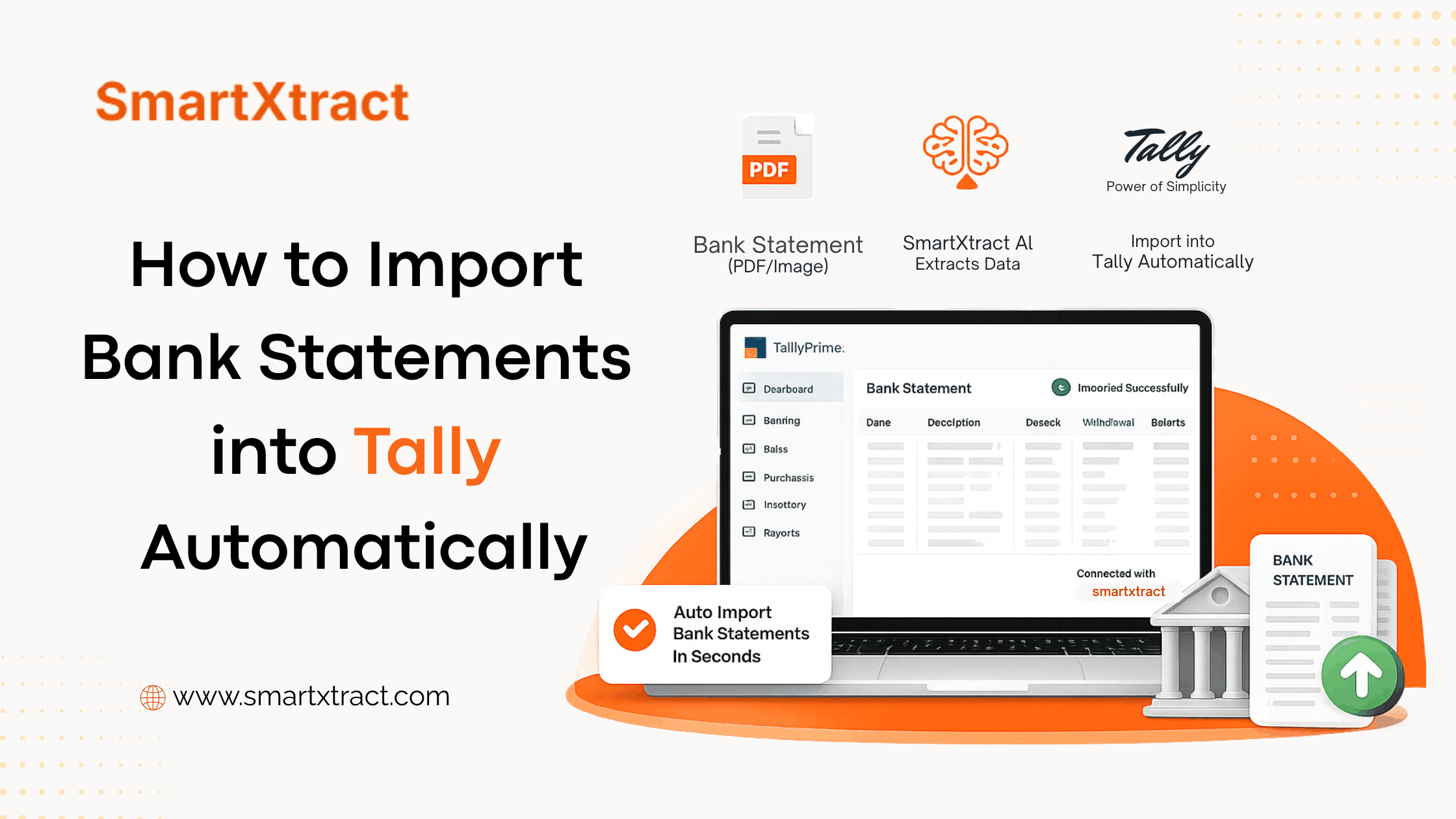
Tally cannot open a bank statement PDF. Importing one automatically means three things have to happen: the transactions are read off the statement, a ledger is decided for each one, and the finished vouchers are pushed into your Tally company. A bank statement tool does the first and the third. The ledger call stays yours.
Here is the whole sequence, what each step produces, and the places it usually goes wrong. If someone has told you that you need to build a Tally XML file first, read that before you start — you probably do not.
Why Manual Bank Entry Creates Problems
Many businesses still manually enter bank transactions into Tally, which creates several challenges:
- Time-consuming data entry
- Higher chances of accounting mistakes
- Duplicate entries and missing transactions
- Increased workload during GST filing and audits
- Difficult reconciliation process
Automatic bank statement import solves these problems by converting statements directly into Tally ready data.
What is Automatic Bank Statement Import?
Automatic bank statement import means converting bank statement files (PDF, Excel, CSV, etc.) into Tally compatible voucher entries without manual typing.
The software reads transaction details such as:
- Date
- Description
- Debit Amount
- Credit Amount
- Balance
- Transaction Narration
Then it automatically prepares data for Tally import.
How to Import Bank Statements into Tally Automatically
Step 1: Upload Your Bank Statement
Start by uploading your bank statement file.
Supported formats usually include:
- PDF Bank Statements
- Excel Files
- CSV Files
- Scanned Statements
Simply drag and drop your file into the software.
Step 2: Extract Transaction Data Automatically
The software reads the uploaded file and extracts transaction information automatically.
This process identifies:
- Transaction date
- Narration
- Amount
- Deposit/Withdrawal
- Reference numbers
No manual typing required.
Step 3: Auto Detect and Map Ledgers
Modern automation tools can:
- Detect transaction types automatically
- Suggest ledger mapping
- Pull existing Tally ledgers
- Auto-assign common entries
Users can review mappings before importing.
Step 4: Select Voucher Type
Choose how transactions should be created inside Tally.
Common voucher types:
- Payment Voucher
- Receipt Voucher
- Contra Voucher
- Journal Voucher
Selecting the correct voucher type ensures accurate accounting.
Step 5: Convert Bank Statement into Tally Format
Once mappings are completed:
- Click Convert
- Software generates Tally-compatible data
- Creates structured voucher entries automatically
This removes the need for manual bookkeeping.
Step 6: Import Into Tally
Finally:
- Export converted data
- Import directly into Tally
- Verify transactions
- Complete reconciliation
Your bank statement is now imported successfully.
Benefits of Automatic Bank Statement Import
Saves Huge Amount of Time
Manual entry that takes hours can be completed within minutes.
Reduces Human Errors
Automation minimizes:
- Typing mistakes
- Missing entries
- Duplicate transactions
Faster Bank Reconciliation
Transactions become ready for reconciliation immediately.
Improves Accountant Productivity
Accountants can focus on analysis instead of data entry.
Scales Easily
Useful for:
- CA Firms
- SMEs
- Businesses with multiple bank accounts
- Bookkeeping teams
Who Should Use Automatic Bank Statement Import?
This solution is useful for:
- Accountants
- Chartered Accountants
- Small Businesses
- Enterprises
- Bookkeepers
- Finance Teams
Anyone handling large volumes of transactions can benefit.
Common Problems During Import
Before you troubleshoot anything else, check the file itself. Tally will not import a PDF, and it will not import an Excel or CSV that was converted from one — that single rule explains most failed imports. What TallyPrime will and will not accept lists the rest of the causes.
Incorrect PDF Format
Some scanned statements may require OCR processing, and those are the rows worth checking first — see converting a scanned bank statement.
Wrong Ledger Mapping
Always verify suggested ledgers before final import.
Duplicate Transactions
Use duplicate detection before importing.
Tips for Faster Bank Statement Import
- Keep bank statements organized
- Use proper ledger naming conventions
- Review mappings before import
- Import statements regularly instead of monthly backlog
Conclusion
Importing bank statements into Tally automatically can significantly improve accounting efficiency. Instead of spending hours entering transactions manually, businesses can automate the entire process from statement upload to voucher creation.
By using bank statement automation tools, you can save time, reduce errors, and make accounting faster and more accurate.
If your business regularly handles large volumes of bank transactions, automating bank statement import is no longer optional it is a productivity necessity.